
Introduction
Custom throw pillows remain one of the simplest ways to update a room without structural changes. They are often used to introduce seasonal color, reinforce a brand identity in commercial spaces, or personalize living areas. Because pillows are functional decor, design decisions must balance visual appeal with practical placement.
Unlike flat paper prints, pillow designs interact with fabric texture, seams, and stuffing. Artwork must account for bleed, edge stitching, and scale. A design that looks balanced on screen may feel crowded once wrapped around a filled cushion.


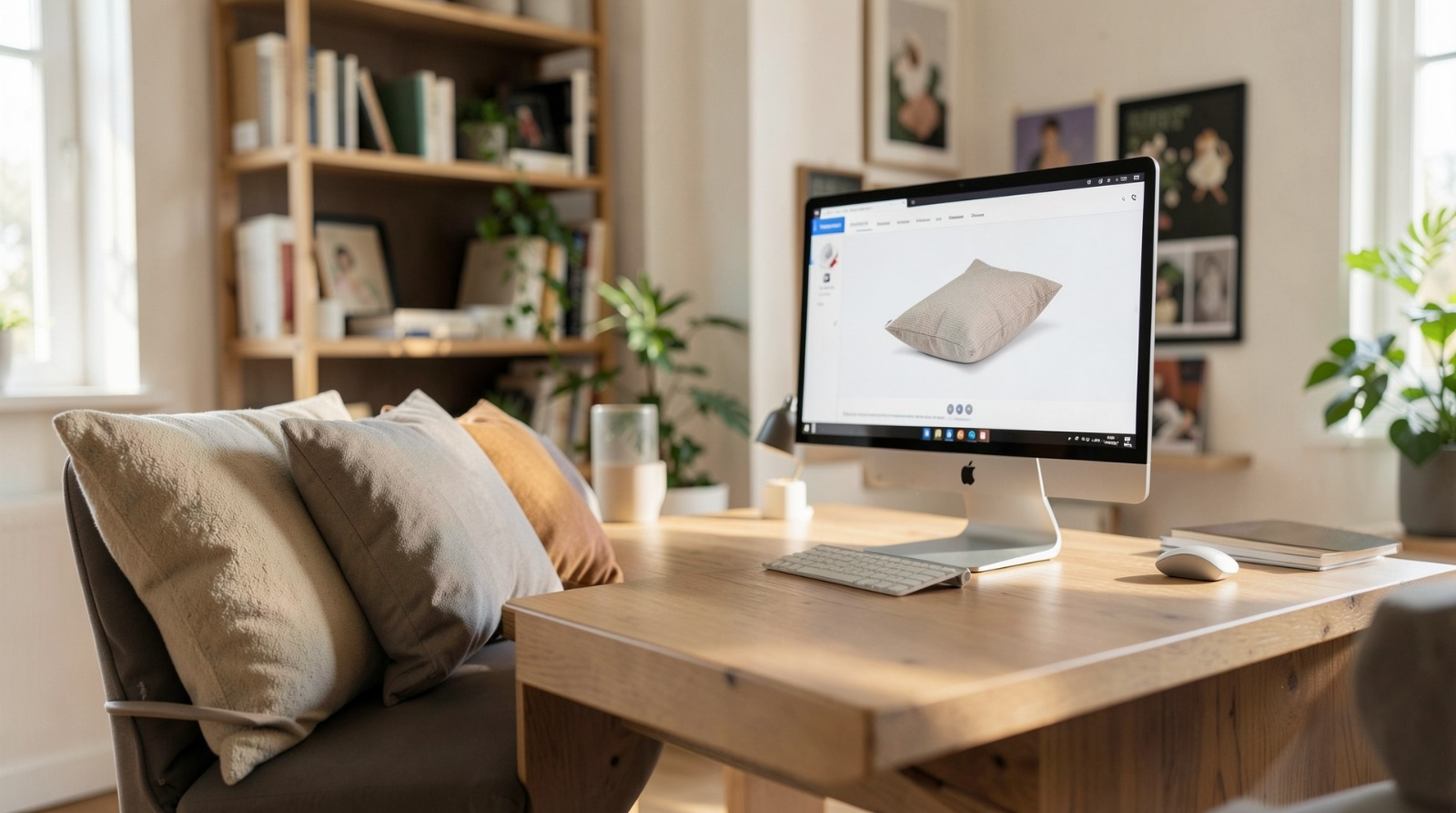
Integrated pillow design platforms reduce technical friction by combining layout tools, preview features, and print ordering into a single workflow. For beginners, this removes the need to manage multiple file types. For experienced users, it simplifies production steps.
The goal is not decorative complexity. It is clarity, proportion, and print readiness.
Step-by-Step How-To Guide for Using Custom Throw Pillows
Step 1: Set Canvas Size and Print Boundaries
Goal
Establish correct dimensions and safe zones before placing artwork.
How to do it
- Choose pillow size (commonly 16×16, 18×18, or 20×20 inches).
- Confirm whether the design prints on one side or both.
- Activate bleed or seam allowance guides if available.
- Lock the canvas dimensions before adding graphics.
- Review margin indicators to prevent important content from touching stitched edges.
What to watch for
- Confusing trim size with full bleed size.
- Placing text too close to seams.
- Switching dimensions mid-design.
Tool notes
Platforms such as the Adobe Express pillow designer provide preset canvas sizes and boundary guides, reducing setup errors during initial layout.
Step 2: Define the Visual Focus
Goal
Ensure the pillow communicates one clear design intention.
How to do it
- Select a central phrase, image, or pattern.
- Limit secondary decorative elements.
- Increase spacing around the primary subject.
- Test composition at reduced zoom levels.
- Keep symmetrical balance for square layouts.
What to watch for
- Overcrowded corners.
- Competing focal points.
- Excessively small text.
Tool notes
Grid overlays within integrated design platforms help maintain alignment consistency.
Step 3: Adjust Scale for Fabric Surfaces
Goal
Make sure artwork reads clearly once printed on textile material.
How to do it
- Enlarge fine details slightly.
- Avoid extremely thin lines.
- Test boldness of fonts against textured backgrounds.
- Expand background color fully to bleed edges when required.
- Preview the design at actual size dimensions.
What to watch for
- Details disappearing into fabric texture.
- Text that appears smaller in real-world scale.
- Insufficient edge bleed.
Tool notes
Vector-based editors like Gravit Designer can refine shapes before importing them into a pillow layout tool.
Step 4: Refine Color and Contrast
Goal
Preserve clarity after printing on fabric.
How to do it
- Choose high-contrast color combinations.
- Avoid pale text on light backgrounds.
- Keep the palette limited to maintain cohesion.
- Test grayscale readability.
- Review the design under different lighting conditions.
What to watch for
- Muted tones after printing.
- Excessively subtle gradients.
- Color banding in large flat areas.
Tool notes
Color planning tools such as Huemint can assist in evaluating balanced combinations before final export.
Step 5: Review Seam and Edge Alignment
Goal
Prevent awkward cropping at stitched borders.
How to do it
- Check alignment against seam allowances.
- Keep important elements inside safe zones.
- Confirm symmetrical margins on all sides.
- Examine corner placement closely.
- Use preview mode to simulate finished stitching.
What to watch for
- Text partially hidden in seams.
- Asymmetrical spacing.
- Cut-off pattern repeats.
Tool notes
Integrated preview tools help simulate finished pillow edges without requiring external mockup software.
Step 6: Export Using Correct Print Specifications
Goal
Prepare a file that meets textile printing standards.
How to do it
- Confirm 300 DPI resolution.
- Choose PNG or PDF depending on printer requirements.
- Embed or outline fonts when applicable.
- Reopen exported file to verify sharpness.
- Save an editable version separately.
What to watch for
- Automatic compression.
- Missing bleed margins.
- Incorrect scaling during export.
Tool notes
Secure file storage services like Sync.com can help manage version control during production.
Step 7: Coordinate Production and Delivery
Goal
Ensure timelines align with intended use.
How to do it
- Confirm order quantity and pillow size.
- Review estimated production time.
- Double-check shipping details.
- Archive design files for future reorders.
- Keep records of print specifications.
What to watch for
- Tight deadlines before events.
- Size mismatches between insert and cover.
- Delivery delays.
Tool notes
Shipping coordination platforms such as Easyship can assist with tracking and logistics planning.
Common Workflow Variations
Photo-Centered Pillow
Use high-resolution imagery and increase contrast to prevent softness after textile printing.
Pattern-Based Pillow
Extend patterns fully to bleed edges and confirm repeat symmetry before export.
Minimal Typography Pillow
Use bold, legible fonts and center content for visual balance.
Two-Sided Design Pillow
Mirror placement carefully to ensure consistent orientation.
Before You Start Checklist
- Confirm pillow dimensions
- Decide one-sided or double-sided print
- Gather high-resolution artwork
- Choose readable fonts
- Identify bleed requirements
- Select color palette
- Estimate quantity
- Confirm production timeline
Pre-Export / Pre-Order Checklist
- Canvas size verified
- Safe margins respected
- Artwork at 300 DPI
- Fonts embedded or outlined
- Colors reviewed for contrast
- Seam allowance checked
- File reopened after export
- Order details confirmed
Common Issues and Fixes
Blurry Graphics
Replace low-resolution files with high-quality versions before exporting.
Text Too Close to Edge
Reposition elements within seam-safe zones.
Muted Printed Colors
Increase contrast slightly in the digital file before submission.
Cropping at Corners
Expand bleed margins to prevent trimming errors.
Incorrect Pillow Size Ordered
Verify final dimensions before confirming production.
Design Appears Off-Center
Use grid alignment tools to correct spacing inconsistencies.
How To Use Custom Throw Pillows: FAQs
Is a template necessary?
Templates reduce alignment mistakes and simplify setup, particularly for beginners.
What resolution should pillow artwork use?
300 DPI is standard for textile printing clarity.
Should designs extend to the edge?
If full-bleed printing is intended, artwork should extend beyond trim lines.
Are fabric prints darker than screen previews?
Color may appear slightly muted depending on textile material and printing method.
Is double-sided printing recommended?
Double-sided designs increase flexibility but require careful alignment planning.