
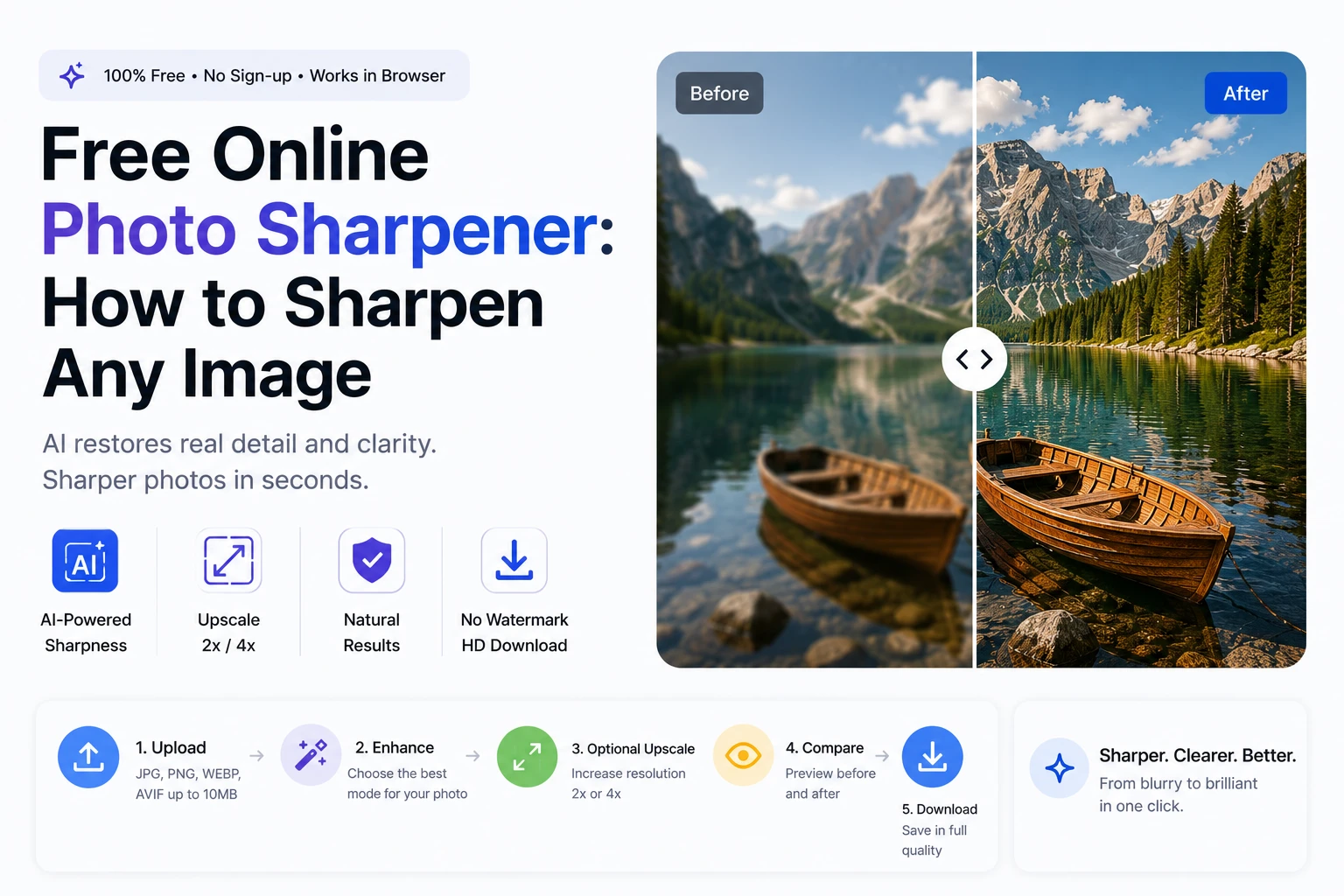
A soft or blurry photo can ruin an otherwise perfect shot. Whether it’s a portrait with slightly missed focus, a product image that looks flat, or an old scan that’s lost its crispness — sharpening makes the difference between a photo you can use and one you have to retake. A good free photo sharpener online uses AI to reconstruct the missing detail, producing results that look natural rather than over-processed — in seconds, in your browser, at no cost.
Why Traditional Sharpening Doesn’t Work Well
Every basic photo editor has a sharpening slider. What it actually does is increase the contrast between adjacent pixels — making the boundaries between light and dark areas more defined. This creates the visual impression of sharpness without adding any actual detail.


The problem with this approach becomes obvious quickly. Push the slider too far and you get halos around edges — a light fringe on one side of every contour that immediately looks artificial. Apply it to an image with noise and the noise gets amplified along with the edges. The result often looks worse than the original soft image.
AI sharpening works from a different principle entirely. The model has learned what genuinely sharp images look like — not just at the edge level, but at the level of real-world textures, materials, and structures. When it processes a soft image, it reconstructs what the detail should look like rather than amplifying what’s already there.
What AI Sharpening Actually Does
| Aspect | Traditional Filter | AI Sharpening |
| How it works | Increases contrast at pixel edges | Reconstructs detail from learned image patterns |
| Result on portraits | Over-sharpened skin, visible noise | Natural skin texture, crisp eyes and hair |
| Result on text | Halos around letters, noise amplified | Clean, readable characters |
| Result on complex backgrounds | Artifacts and unnatural edges | Coherent texture reconstruction |
| Risk of over-processing | High — artifacts appear quickly | Low — model balances sharpness naturally |
How to Sharpen Any Photo Online for Free
Step 1: Go to Phototune.ai and open the AI image enhancer. No sign-up or software needed — the tool works directly in any browser on desktop or mobile.
Step 2: Upload your photo. Drag and drop or click to browse. JPG, PNG, WEBP, and AVIF formats are supported up to 10MB.
Step 3: Choose your enhancement mode. For general sharpening of any photo, Enhance mode works well. For blurry or out-of-focus images, Unblur mode is specifically designed to reconstruct missing focus. For portraits, Portrait mode applies face-specific sharpening. For screenshots or documents with text, Text Enhance mode targets letter clarity specifically.
Step 4: Add upscaling if needed. Sharpening and upscaling can be combined — if your image is also too small, select 2x or 4x to increase resolution and sharpness simultaneously.
Step 5: Compare the before and after at full zoom, then download at full resolution.
Which Photos Respond Best to AI Sharpening
- Portraits with soft focus — AI restores eye detail, skin texture, and hair strands without over-processing
- Product photos that look slightly flat — edges become crisp and material textures more defined
- Old scanned prints — grain is reduced and fine detail reconstructed from what the scanner captured
- Social media downloads — compression blur is reversed and sharpness recovered
- Screenshots with blurry text — letters become readable without affecting surrounding areas
- Low-light phone photos — noise is reduced while underlying detail is sharpened
When Sharpening Has Limits
AI sharpening produces excellent results when there’s detail to recover — partially blurry, soft, or compressed images respond well. The limits appear in extreme cases:
- Severe motion blur from very fast movement or very long exposures — mild to moderate motion blur is improved, but extreme cases retain some blur
- Images taken in near-complete darkness — very heavy noise can limit the amount of real detail the AI can distinguish
- Heavily over-compressed images — multiple rounds of JPEG compression remove detail that can’t be fully recovered
For most everyday photography — portraits, products, landscapes, screenshots, old photos — the results are significantly better than manual sharpening filters.
Try the Phototune.ai enhancer free — upload your photo, select your sharpening mode, and download a crisper, more detailed version in seconds. No account, no software, no watermark on the output.